Manage notifications
Browser notifications tell you when a game starts, when it is your turn, and when a game ends. You turn them on separately in each browser. Email covers other things, such as invitations to work on a game, and you can turn each kind off.
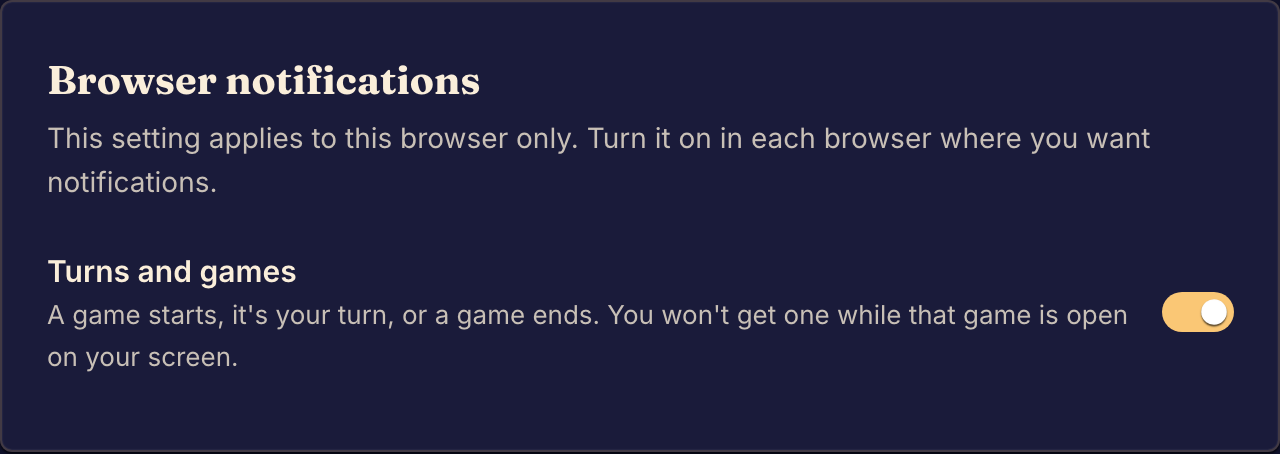
Get turn alerts in this browser
- Open the account menu, select Settings, then the Notifications tab.
- Under Browser notifications, turn on Turns and games.
- Allow notifications when your browser asks.
You do not get a notification for a game that is open on your screen. Repeat these steps in each browser where you want notifications.
Choose your email
Under Email notifications, turn off the email you do not want:
| Switch | What it sends |
|---|---|
| All email | Every Boardweaver notification. |
| Playtest feedback | A summary when playtesters leave feedback on a game you work on. |
| Game invitations | A message when someone invites you to work on a game. |
Sign-in and account email always arrives. You can also follow the unsubscribe link in a notification email and select Unsubscribe. A guest has no email address, so a guest sees only browser notifications.
If notifications do not arrive
| What you see | What to do |
|---|---|
| Notifications are blocked for this site. | Allow notifications for Boardweaver in your browser's site settings, then turn them on here. |
| This browser can't show notifications. | Use a recent version of Chrome, Edge, Firefox or Safari. |
| On an iPhone or iPad, notifications only work in the Boardweaver app on your Home Screen | Add Boardweaver to your Home Screen, open it from there, sign in, and turn notifications on. See Play on your phone. |
| Notifications need iOS or iPadOS 16.4 or later. | Update your iPhone or iPad, then turn notifications on. |
The bell in the top bar is a different list. It holds invitations and requests for playtest feedback.