Play on your phone
Boardweaver works in your phone's web browser, with nothing to install. When you are signed in on a phone, a tab bar along the bottom of the screen holds Matches, Play, Studio and You. During a match, a drawer holds the controls for that match and a list of your other matches. You can also add Boardweaver to your Home Screen.
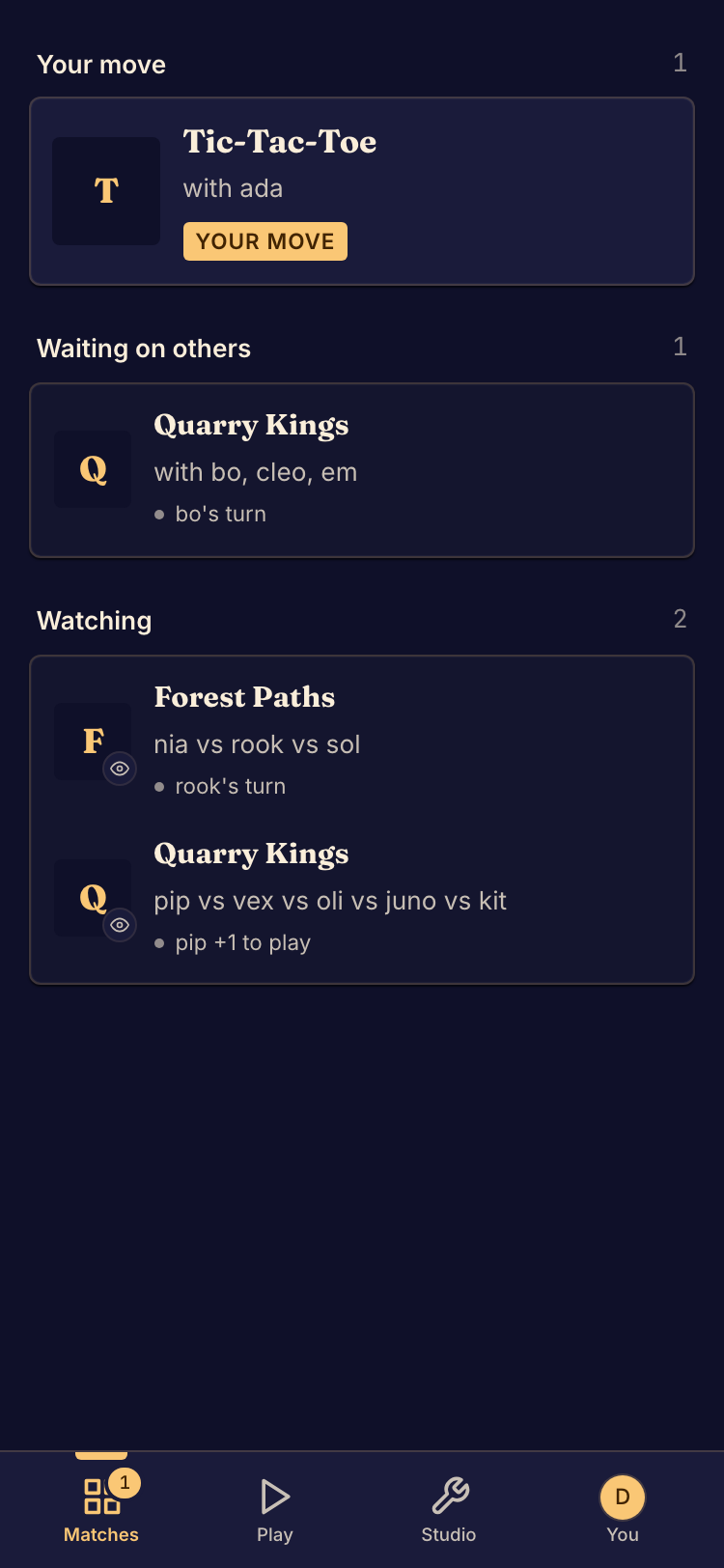
Play a match on a phone
- Open the match link in your phone's browser.
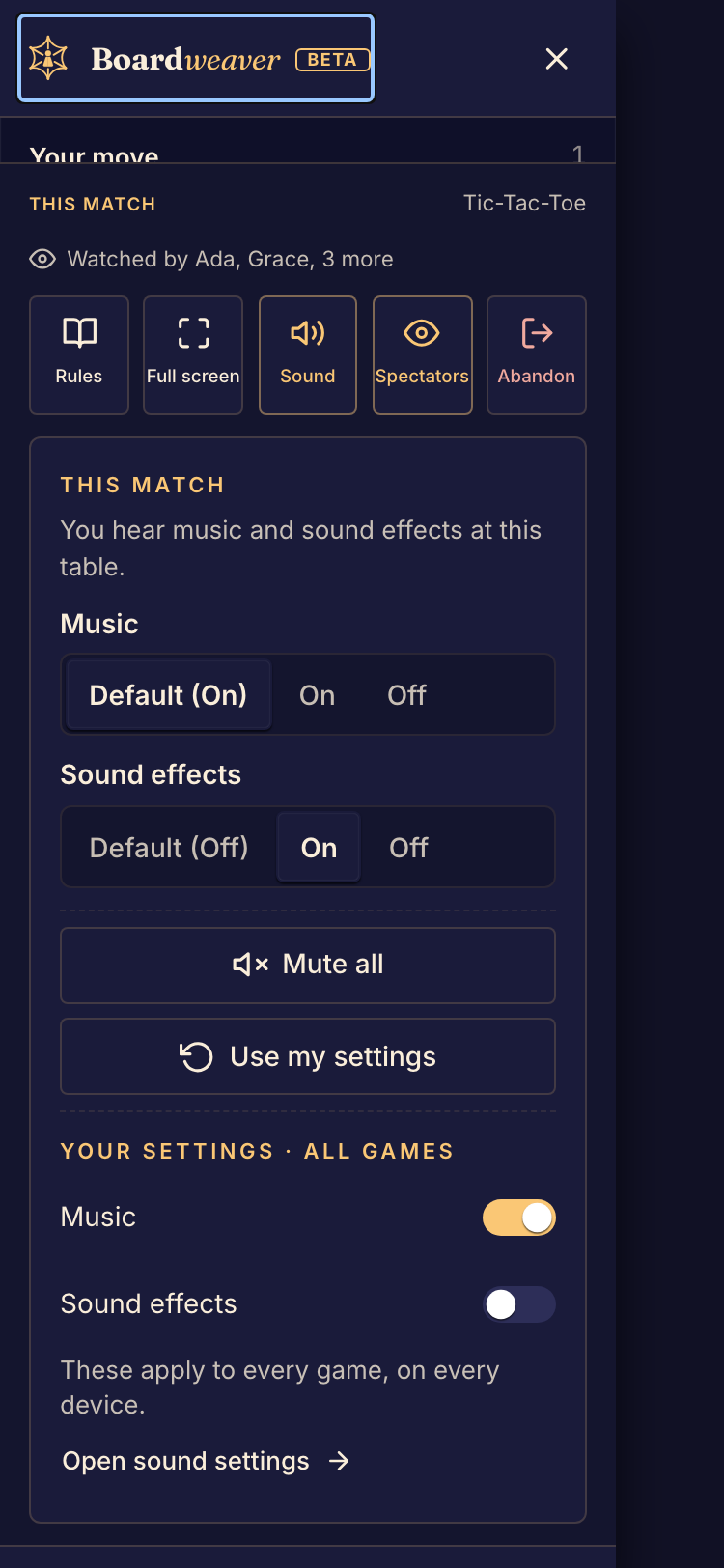
- In the match, open the drawer. Tap the menu button at the left end of the match bar, or the floating button in a corner of the board. You can drag the floating button to another corner.
- Under This match, tap Rules, Sound or Full screen, or the button to leave the match.
- To switch matches, tap another match in the drawer. Tap See all matches to open the full list.
Full screen shows only in browsers that can take the board full screen.
Add Boardweaver to your Home Screen
On an iPhone or iPad, open Boardweaver in Safari, tap Share, then tap Add to Home Screen. In another browser, use its install or Add to Home Screen item, if it has one.
On an iPhone or iPad, notifications only work in the Boardweaver app on your Home Screen, and they need iOS or iPadOS 16.4 or later. Open Boardweaver from your Home Screen, sign in, and turn notifications on. See Manage notifications.