Sound settings
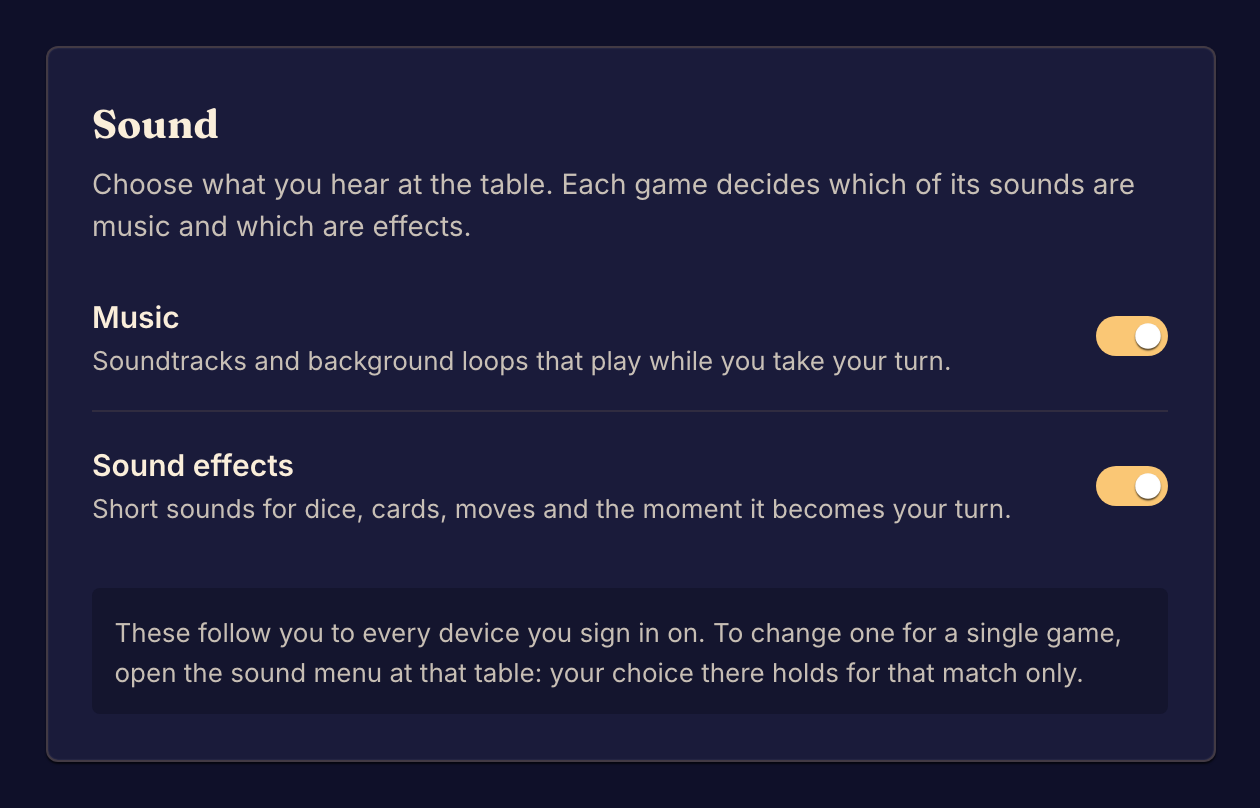
You control two kinds of game sound: Music (soundtracks and background loops) and Sound effects (short sounds for dice, cards, moves and the start of your turn). Each game decides which of its sounds are music and which are effects.
| Setting | Where | Applies to |
|---|---|---|
| Music and Sound effects switches | Settings, General tab, Sound | Every game, on every device you sign in on |
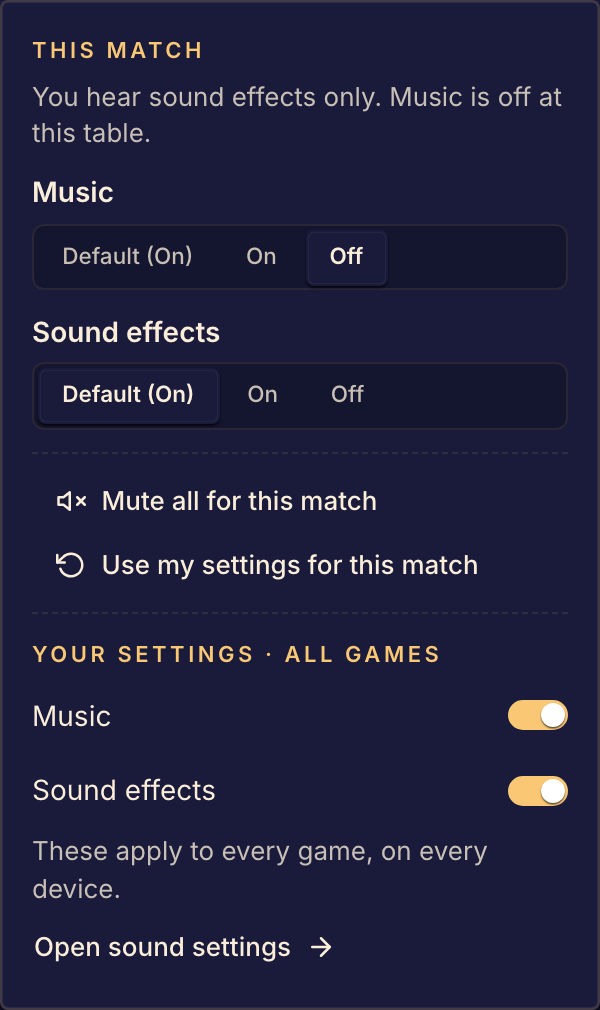
| Default, On or Off for each kind | The sound menu in a match, under This match | This match only |
| Mute all for this match | The sound menu in a match | This match only |
| Use my settings for this match | The sound menu in a match | Sets this match back to your settings |
In a match
Open the sound menu with the speaker button in the match's controls. On a phone, tap Sound in the match drawer. The menu says what you hear at this table, for example "You hear sound effects only. Music is off at this table." Default follows your own setting, which shows in brackets, such as Default (On).
If you hear nothing
The speaker button shows only in games that have sounds. A game with no music has nothing for the Music switch to play. Your browser plays a game's sound only after you have selected something on the page, so select a control or make a move.
If a game's sound still does not play, tell us the game, your browser and the sound from the Contact page.