Delete a game
Deleting a game removes it from the Studio and from Play for everyone, including its other members. Only an admin of the game can delete it. You cannot undo a deletion from the Studio.
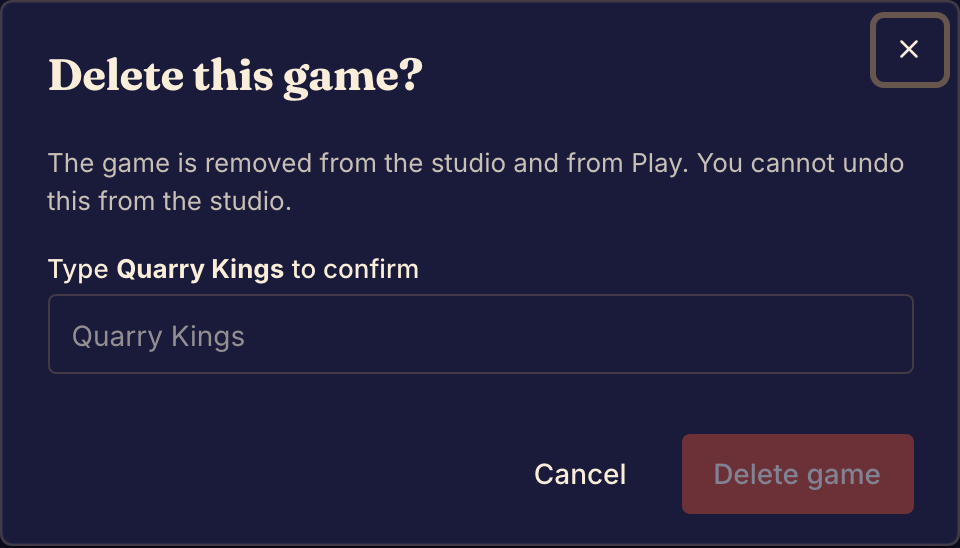
Delete the game
- Open the game in the Studio.
- In the sidebar, under Access, select Delete game. The Delete this game? dialog opens.
- Type the game's name exactly as the dialog shows it.
- Select Delete game.
Boardweaver shows a message that the game was deleted and opens the Studio page.
Before you delete
To stop public testing but keep the game, end the public playtest instead. See Open a public playtest.
If you delete your account, each game with no other admin stops taking new matches. Boardweaver deletes those games 30 days later, unless you restore your account. See Delete or restore your account.
Deleting hides the game. It does not erase every stored record of it at once. To ask for your data to be erased, read the Privacy policy or use Contact. Both links are at the bottom of every page.
If something goes wrong
You do not see Delete game. You are not an admin of this game. Ask an admin to delete it. See Roles and permissions.
The dialog says "The game could not be deleted. Try again." The game was not deleted. Select Delete game again.
To build something new, create a game.