Edit the game theme
The theme sets your game's fonts, colors and backgrounds. Light mode and dark mode each have their own background. Admins and editors can change it on the Theme page. Boardweaver saves each valid change after a moment, so the page has no save button.
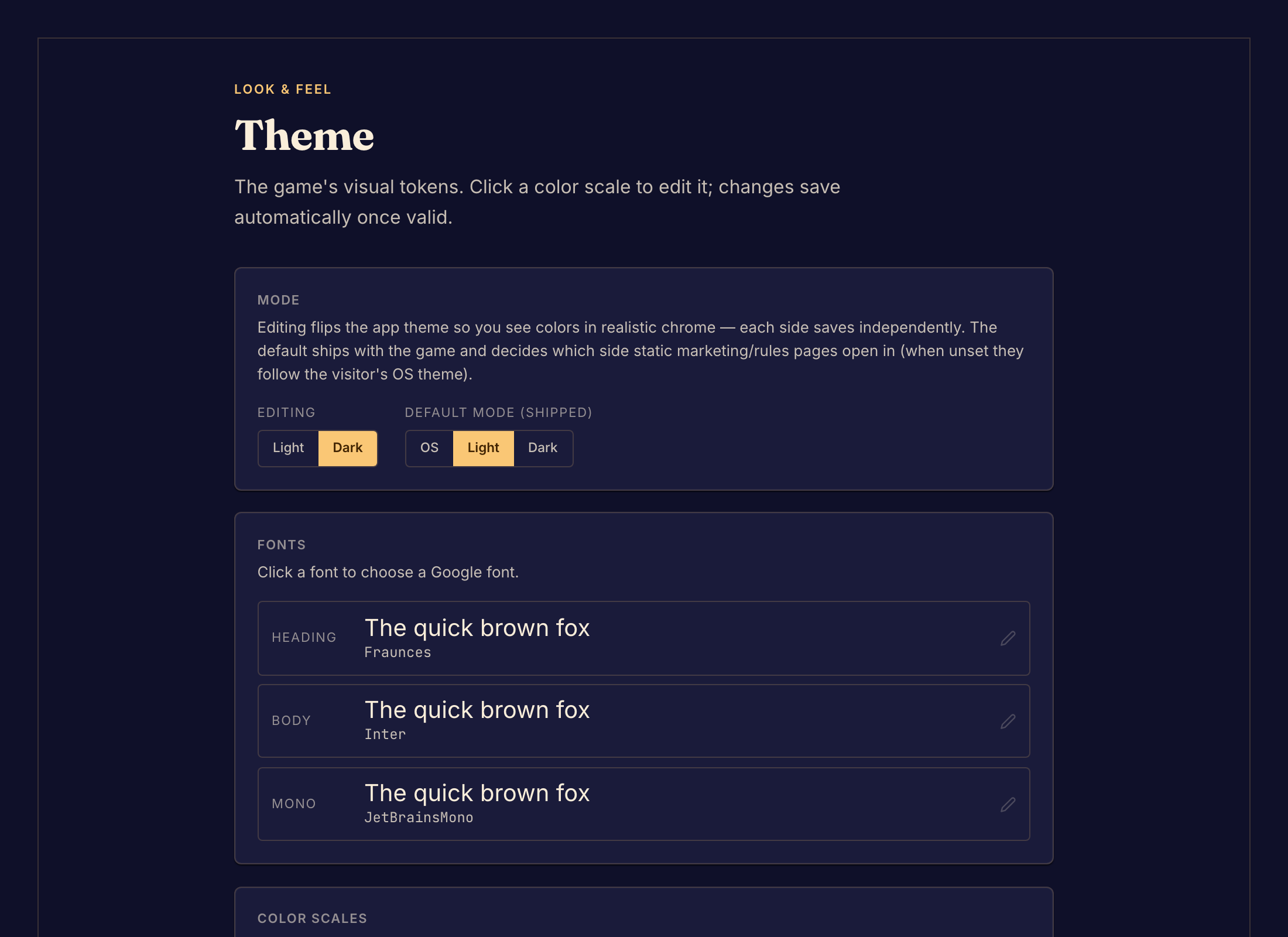
Change the theme
- Select Theme under Presentation in the Studio sidebar.
- Under Mode, choose Light or Dark in Editing. The Studio switches to that mode, so you see your colors as players will.
- Under Fonts, select a font to choose a Google font.
- Under Color scales, select a scale to edit its base color and shades.
- Under Background, select the preview to edit the background layers of the mode you are editing.
- Choose the other mode in Editing, and repeat step 5.
- Under Default mode (shipped), choose the mode that your rules pages and game page open in: Light, Dark, or OS to follow the visitor's system setting.
- Check the board in Preview, and check the Rules page, in both modes.
- Commit your changes. Players see the new theme only after you commit. See Commit a game version.
The bar above the editor shows Saving… and then Saved after each change.
When a change does not save or show
- If the bar shows Unsaved changes and does not change to Saved, a value is not valid. Boardweaver does not save a theme that is not valid. Fix the value that the editor marks.
- If the bar shows Save failed, Boardweaver could not save the theme. Change a value again to retry.
- If a part of the board does not follow the theme, your game's code sets that color itself. Ask your coding agent to use the theme there. See Design a game theme and Game theme format.
Next, edit the rules pages.