Allow guest play
You can let people play your game's matches without an account. A guest chooses a name and takes a seat. A guest seat lasts 7 days on that device. Only admins of the game can change this, and it works only when the game's creator has the Designer or Professional plan.
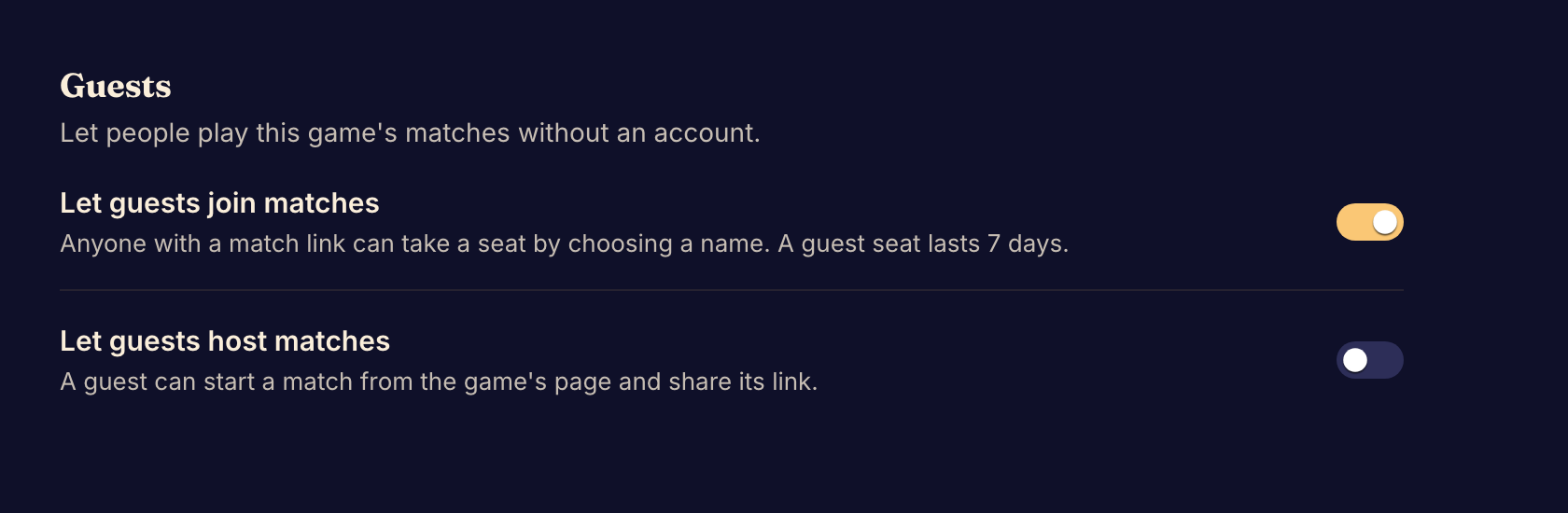
Let guests play
- Select Guests under Access in the Studio sidebar.
- Turn on Let guests join matches. Anyone with a match link can then take a seat by choosing a name.
- To let guests start matches too, turn on Let guests host matches. A guest can then start a match from the game's page and share its link. This switch works only while Let guests join matches is on.
- To check the result, open a match link in a private browser window, where you are signed out. Boardweaver offers you a guest seat.
Boardweaver saves each switch when you change it. If you turn off Let guests join matches, Boardweaver turns off hosting too.
What can go wrong
- If the switches are locked, the plan of the game's creator does not include guest play. The page names the creator and shows See plans. Boardweaver keeps your choices and uses them again when the creator's plan includes guest play.
- A guest can host only a public playtest or a published version. Only members of the game can start a match on your latest commit.
- If you see Failed to save guest settings, Boardweaver did not save the change. Try the switch again.
Event tables
Guest play at event tables is a separate setting, and the Guests page does not change it. On the event's page, select Allow guests to let guests sit down, or Require sign-in to stop them. See Run event tables.
Send guests Play as a guest. Next, open a public playtest so that guests can host matches.