Review matches and feedback
Matches lists every finished match of your game, newest first. For each match it shows the version played, the final scores, the players' feedback and a replay. Admins and editors can open it.
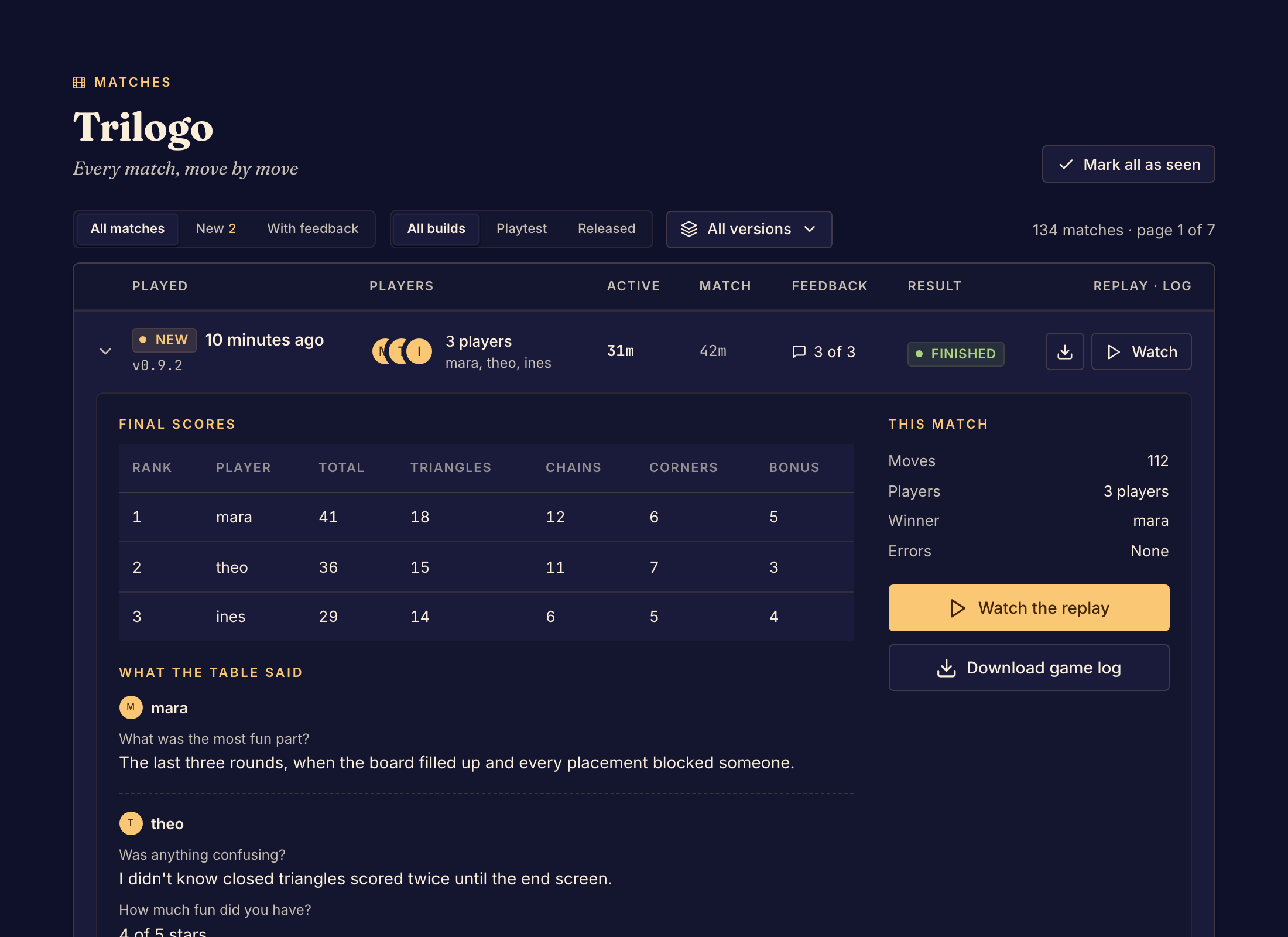
Review a match
- Select Matches under Health in the Studio sidebar. The number beside it counts the finished matches you have not opened.
- Under Show, choose All matches, New or With feedback.
- Under Build, choose All builds, Playtest or Released. Playtest means private and public playtests. Released means the published version.
- To see one version only, open the version menu, which shows All versions at first, and choose a commit.
- Select a match to open it. It shows Final scores, What the table said (the feedback answers) and This match (moves, players, winner and errors).
- Select Watch the replay to step through the match move by move.
When you have read the new matches, select Mark all as seen to clear the count.
What the replay shows
In a TypeScript game, you can use View as in the replay to see the board as any seat saw it. You can also select Download game log on the match to save its log as a file.
In a Rust game, the replay shows only what your own seat could see. If you did not play in the match, it shows what a spectator could see.
Who gives feedback
Boardweaver asks for feedback when a private or public playtest match ends. It asks every player except the game's admins and editors. Matches on the published version get no feedback. To choose the questions, see Create a feedback form.
A match with errors shows the count under Errors. See Investigate game errors. For trends across many matches, see Read game statistics.