Manage agent connections
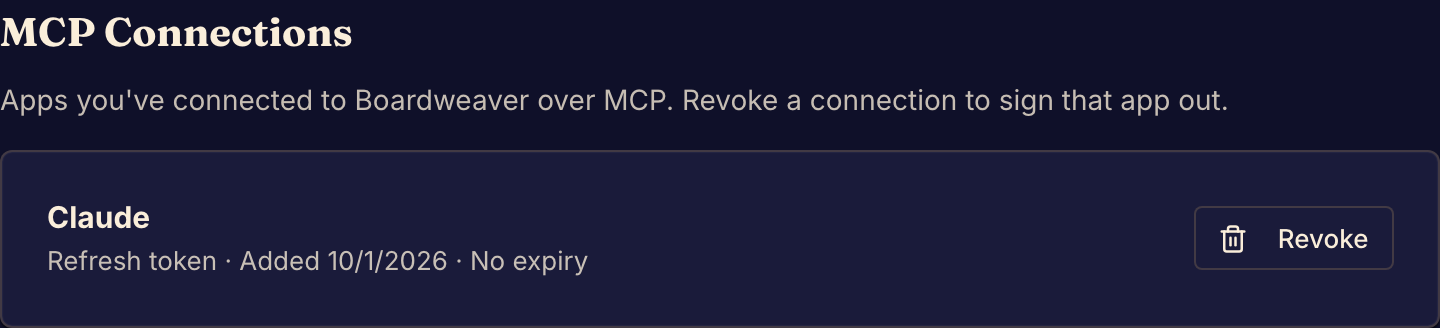
Every coding agent you connect to Boardweaver is listed in Settings, under MCP Connections. Revoke a connection there to sign that agent out of your account.
Sign an agent out
- Open the account menu at the top of the page and select Settings.
- Select MCP Connections. Each row shows an app's name, the date you added it, and the date its access ends or No expiry.
- Find the rows with the name of the agent you want to sign out. One agent can have two rows: an Access token row and a Refresh token row.
- Select Revoke on one of those rows.
- In the Revoke connection dialog, select Revoke.
- Revoke every other row that has the same app name.
While one of its rows stays, the agent can still reach your account.
What revoking changes
The agent is signed out. To use Boardweaver again, it must connect again, and you must approve it again.
Revoking does not undo the agent's work. Edits it saved stay in your game's working files. Versions it committed stay too. Open the game in the Studio to review them.
If something goes wrong
You do not see MCP Connections. You are signed in as a guest, and guests do not have this tab. Keep your guest account first. See Play as a guest.
Boardweaver says "That connected app is already gone". The connection was revoked already, for example in another tab. Reload the page to see your current connections.
To connect an agent again, see Connect a coding agent.