Translate a game
The Translations page lets you write your game's text in other languages. It is for Rust games, and admins and editors see it. Boardweaver never translates a game for you: you write every translation.
Each language is a catalog: a file of messages in /src/i18n in your game's code. The default catalog holds the messages in the language your game is written in. Every translation is made from it.
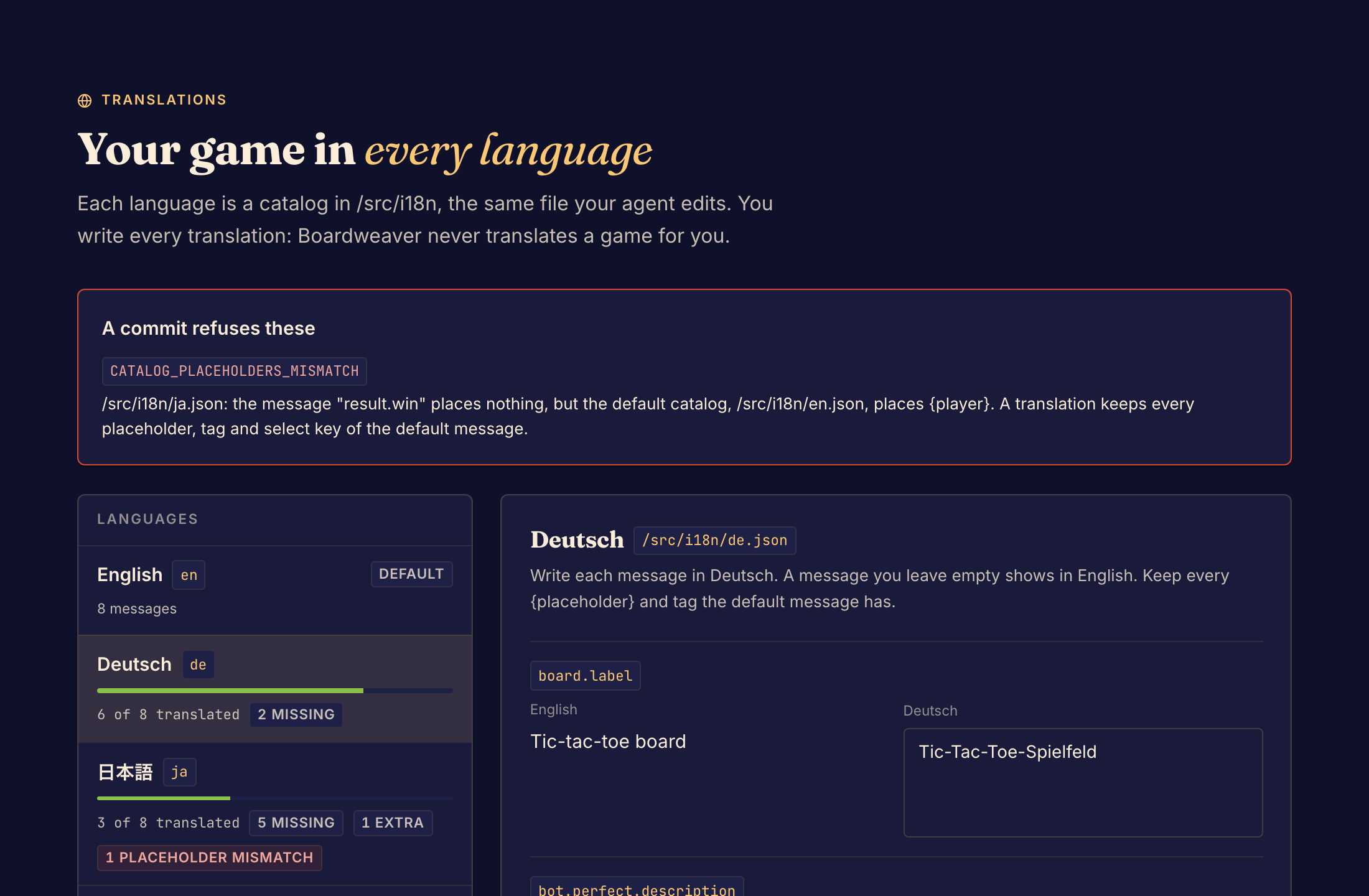
Add or fix a translation
- Select Translations under Build in the Studio sidebar.
- Under Languages, choose a language. To add one, choose it in Add a language and select Add.
- Write each message in the new language. Keep every placeholder in braces, such as
{player}, and every tag that the default message has. - Check the counts beside the language: missing, extra and placeholder mismatches.
- Select Save translations. Studio shows Translations saved.
- Commit your changes. See Commit a game version.
To drop edits that you have not saved, select Discard.
A message that you leave empty shows in the default language. So a translation can look complete in Preview when messages are still missing. Use the missing count to check.
The preview shows your game in your Boardweaver language when the game has a catalog for it. To change your language, see Choose a language.
What can go wrong
| What you see | What to do |
|---|---|
| A commit refuses these | Fix each problem in the list, such as a placeholder that is different from the default message. A commit fails until you fix them. |
| Only in this catalog | These messages are not in the default catalog, so nothing shows them. Select Remove to delete them. |
| Can't be read | The catalog file has an error. Fix the file in Code. |
| The page says the game has no default catalog | Add the default catalog in Code first. |
To change the default messages, edit the default catalog in Code, not on this page. See Translate game text.
Next, run a private playtest with players who read that language.