Share and display table codes
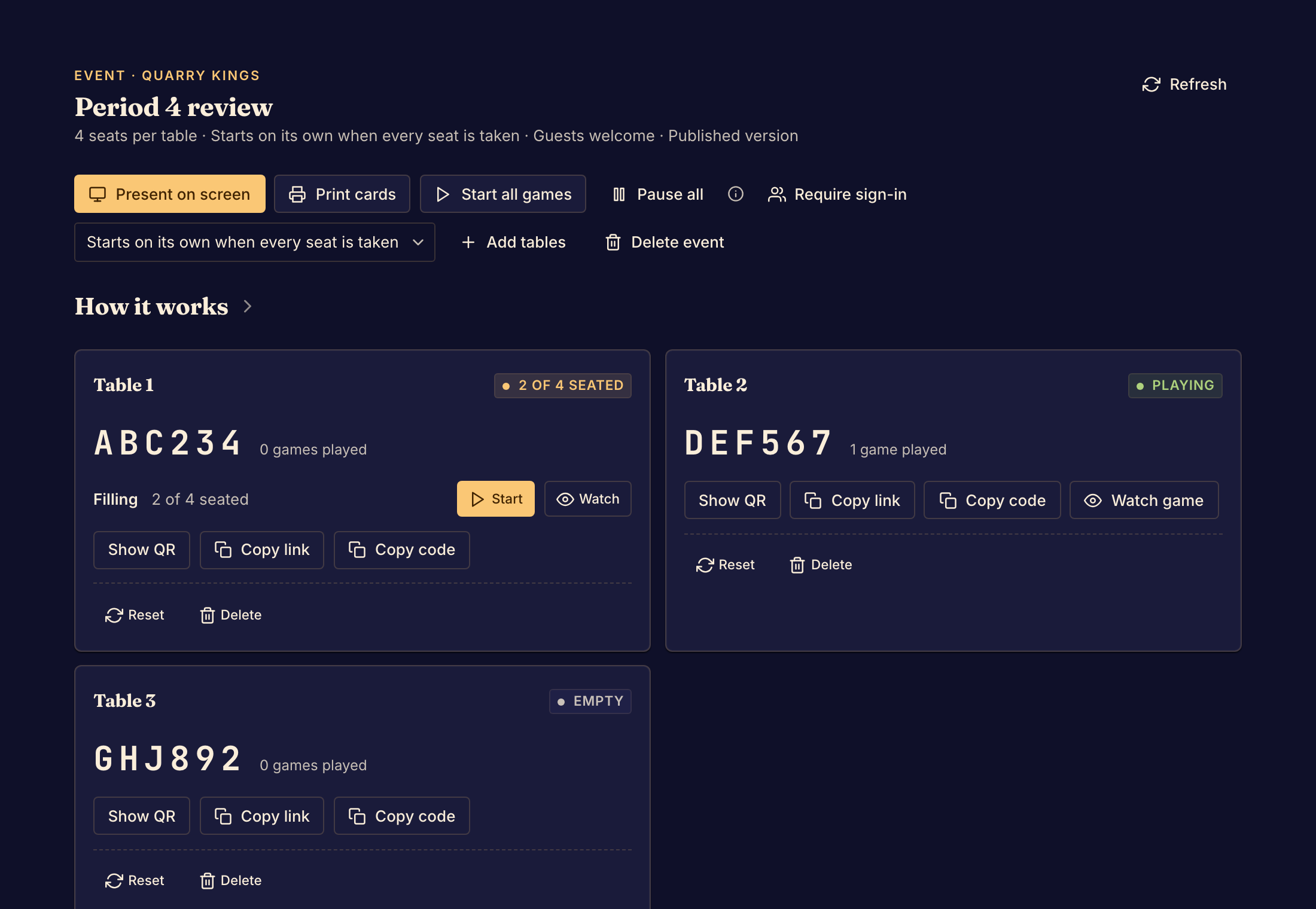
Give each group the code of its own table, so each group sits at the right table. Every table has a six-character code, a QR code and a join link, and all three lead to the same table. People can scan the QR code or open the link. They can also go to the join address that the cards and the screen show, and type the code.
Send a code or a link
- Select Events at the top of the page, then open your event.
- On a table, select Copy code or Copy link. Boardweaver shows Table code copied or Join link copied.
- Paste the code or the link into your message to that table's group.
To get a table's QR code as an image, select Show QR, then Download QR.
Print table cards
- On the event page, select Print cards. The page shows one card for each table, two cards to a page.
- Select Print.
Each card shows the event name, the table number, its QR code and its code. Put each card on its own table.
Show the codes on a screen
- On the event page, select Present on screen.
- Select Fullscreen. To leave, select Exit fullscreen.
The screen shows every table's code and QR code, and tells people how to sit down. Tables you add later appear on it without a reload.
After you change the tables
- Reset and Pause all keep every code. Printed cards still work after you resume.
- When you delete a table, its code and QR code stop working for good.
- Table numbers are never used twice. A table you add later gets a new number and a new code, so print or send its code.
- When you delete the event, every code stops working.
To help people who are joining, send them Join an event table. To manage the tables during play, see Run event tables.