Preview a game
The preview plays your working copy (the saved files you edit) in the Studio, so you can test a change before you commit it. Previewing does not commit or publish anything, and players do not see it.

Test a change
- Select Preview at the top of the Studio sidebar. The preview starts a new match.
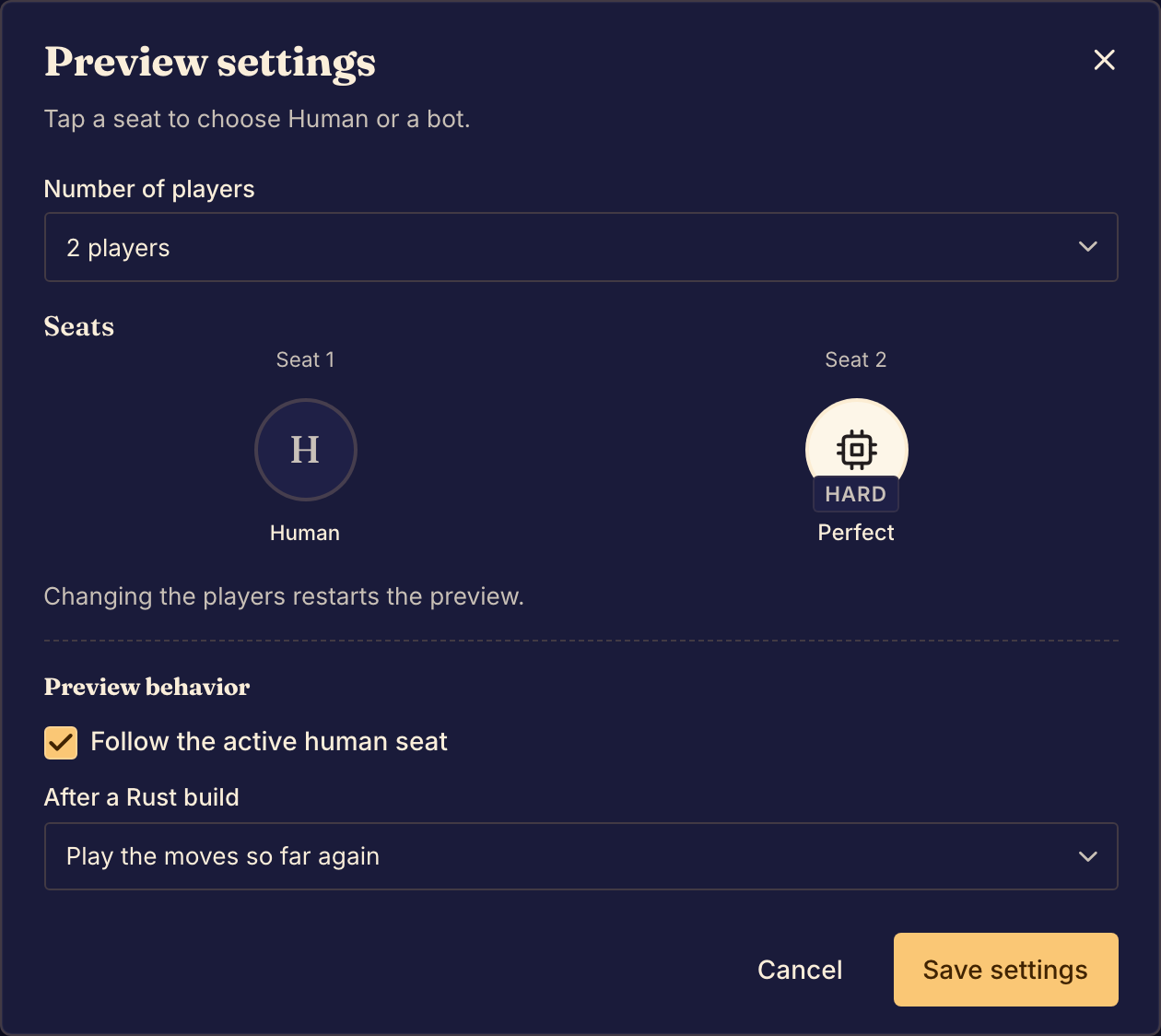
- Set the number of players. In a TypeScript game, select Preview Settings and choose Number of Players. In a Rust game, select Settings, choose Number of players, and select Save settings. Changing the number of players starts a new match.
- Play a turn.
- Check what each player sees. Choose a player in the toolbar's view menu, or press the number key for that player's seat.
- Check what a spectator sees. Choose View as spectator in the view menu. Some TypeScript games do not offer it.
- Check a small screen. Open the size menu in the toolbar and choose a phone.
- To start again from the first position, select Refresh preview in a TypeScript game, or Restart in a Rust game.
To come back to a position later, save a checkpoint.
Follow the player who must act
In a TypeScript game, turn on Auto-switch to active player in Preview Settings. In a Rust game, turn on Follow the active human seat in Settings. The view then changes to the player who must act. In a Rust game it skips bot seats, but you can still choose a bot seat in the view menu.
After you change the code
In a TypeScript game, the preview uses your saved code and keeps the current position. If your game has an error, the toolbar shows View 1 error (or the number of errors). Select it to read the errors. Select View game state to read the game state as each player gets it.
In a Rust game, Boardweaver builds your code after you save it. In Settings, After a Rust build chooses what happens next: Play the moves so far again or Start a new match. If the build fails, the preview keeps playing the last build that passed. Select Preview notices in the toolbar to read the errors.
Rust games: seats and bots

- Select Settings.
- Under Seats, select a seat and choose Human or one of your game's bots. When you choose Human, you play that seat.
- Select Save settings. Changing the players restarts the preview.
If the build has no bots, the dialog says so, and you play every seat. If a bot is no longer in the latest build, the dialog asks you to choose Human or another bot. To add bots to your game, see Write a bot.
Full screen and narrow panes
Select Full screen to fill the window with the board. Press Escape or select Exit full screen to return. Number keys still switch players in full screen.
When the preview pane is narrow, the toolbar moves the controls that do not fit into its overflow menu, More preview controls.
When the change works, commit a game version so other people can play it.