Manage sounds
Upload your game's music and sound effects on the Sounds page. Your game's code decides when each sound plays, and players can turn music and effects off. To upload, you need the admin or editor role and the Designer or Professional plan on your own account.
Boardweaver accepts MP3, WAV, OGG and M4A files of up to 10 MB each.
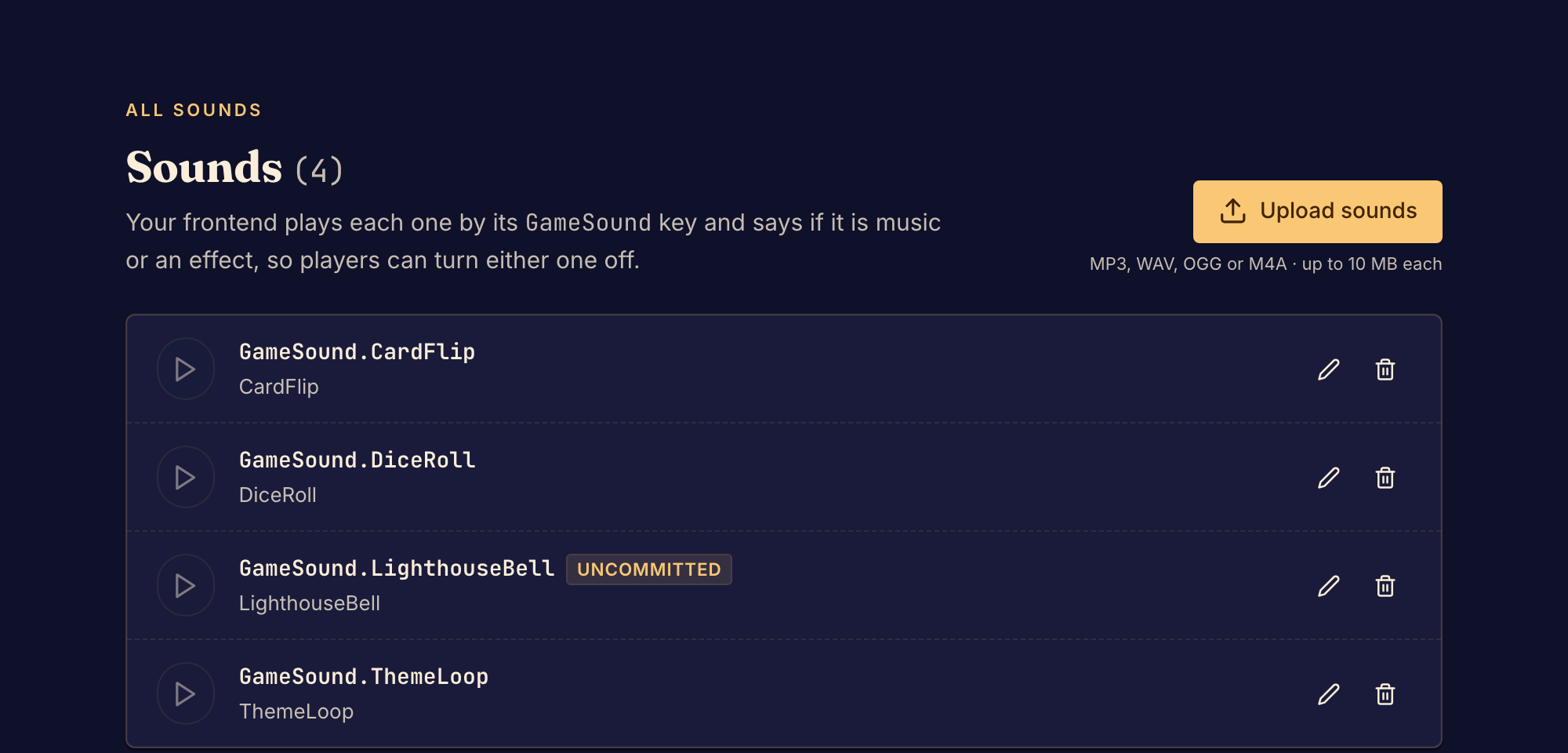
Add a sound
- Select Sounds under Presentation in the Studio sidebar.
- Select Upload sounds and choose a file. Boardweaver names the sound after the file. The new sound shows the Uncommitted badge.
- Select the play button on the sound's row to listen to it.
- Make your game's code play the sound at the right moment, or ask your coding agent to do it. The code uses the sound's name.
- Test the sound in Preview.
- Commit your changes. Players hear the sound only after you commit. See Commit a game version.
To change a sound's name, select the rename button on its row, enter a new Name, and select Rename. Then change the name in your game's code too. To remove a sound, select the delete button on its row, then Delete sound. Commit to remove it from the version players get.
What can go wrong
- If you see Couldn't upload that sound, the file is not an MP3, WAV, OGG or M4A file of 10 MB or less. Boardweaver checks what is in the file, not only its file name extension, so a renamed file can fail.
- If you see the Give your game a soundtrack banner instead of Upload sounds, your plan does not include sounds. Sounds that the game already has keep playing for every player.
For how game code plays a sound, see Images and sounds for TypeScript games or Rust games. For the player's side, see Sound settings.
Next, edit the game theme.