Create a feedback form
Choose the questions playtesters answer at the end of each playtest match. Every game starts with three default questions, which you can edit or remove, and you can add your own. The answers show on the Matches page. To change the form, you need the editor or admin role, and your own plan must be Designer or Professional.
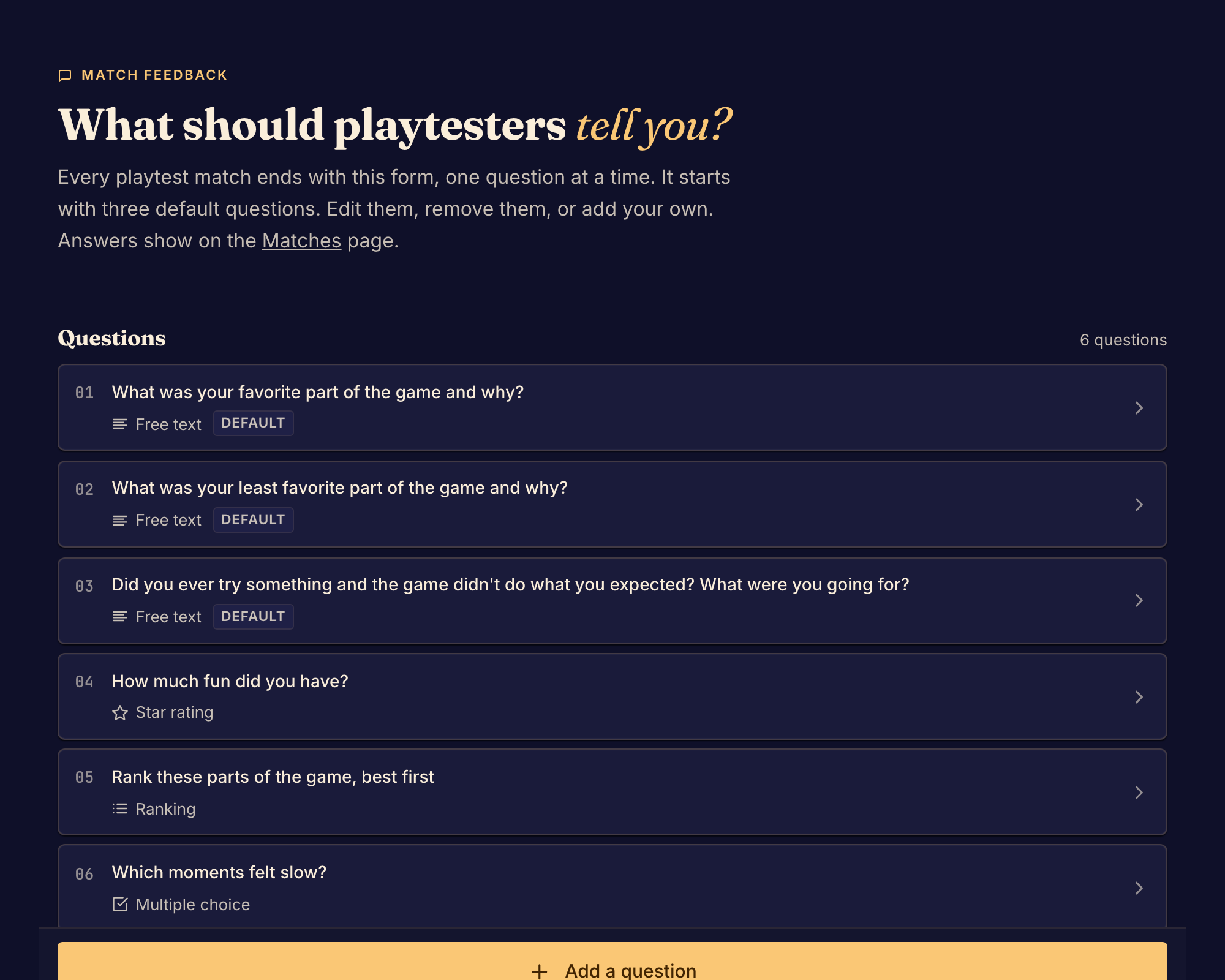
Build the form
- In the Studio sidebar, under Health, select Feedback form.
- To add a question, select Add a question. Choose Free text, Star rating, Scale, Single choice, Multiple choice or Ranking.
- In Question, type what you want to ask. Add Helper text if players need more context.
- Set the answers for the question type. For a Star rating, choose the Number of stars: three, five or ten. For a Scale, choose the Points on the scale. For Single choice, Multiple choice and Ranking, type each option.
- Use the buttons on each question to move it up or down, duplicate it or delete it.
- Check the preview beside the questions. It shows the form as players see it.
- Select Save questions. Boardweaver shows Feedback questions saved.
You do not need to commit the form. To drop the changes you have not saved, select Discard.
To bring back a default question you removed, select Restore the removed default question.
If something goes wrong
Save questions is not available. A question is not complete. Each question needs a prompt. A choice or ranking question needs from 2 to 12 options, and no option can be empty.
The page shows "Designer plan" and a banner, and you cannot edit. Your own plan does not include custom feedback forms. Playtesters still answer the questions shown. See Plans and feature access.
Boardweaver shows "Couldn't save the feedback questions". The form was not saved. Select Save questions again.
To read the answers, see Review matches and feedback.