Run event tables
Your event's page shows each table, the groups waiting at it and the games being played from it. A table is one code and QR. The people who scan it sit down together as a group. When a group fills, the next people who scan start a new group under the same code. You run events with the Professional plan. You never take a seat yourself.
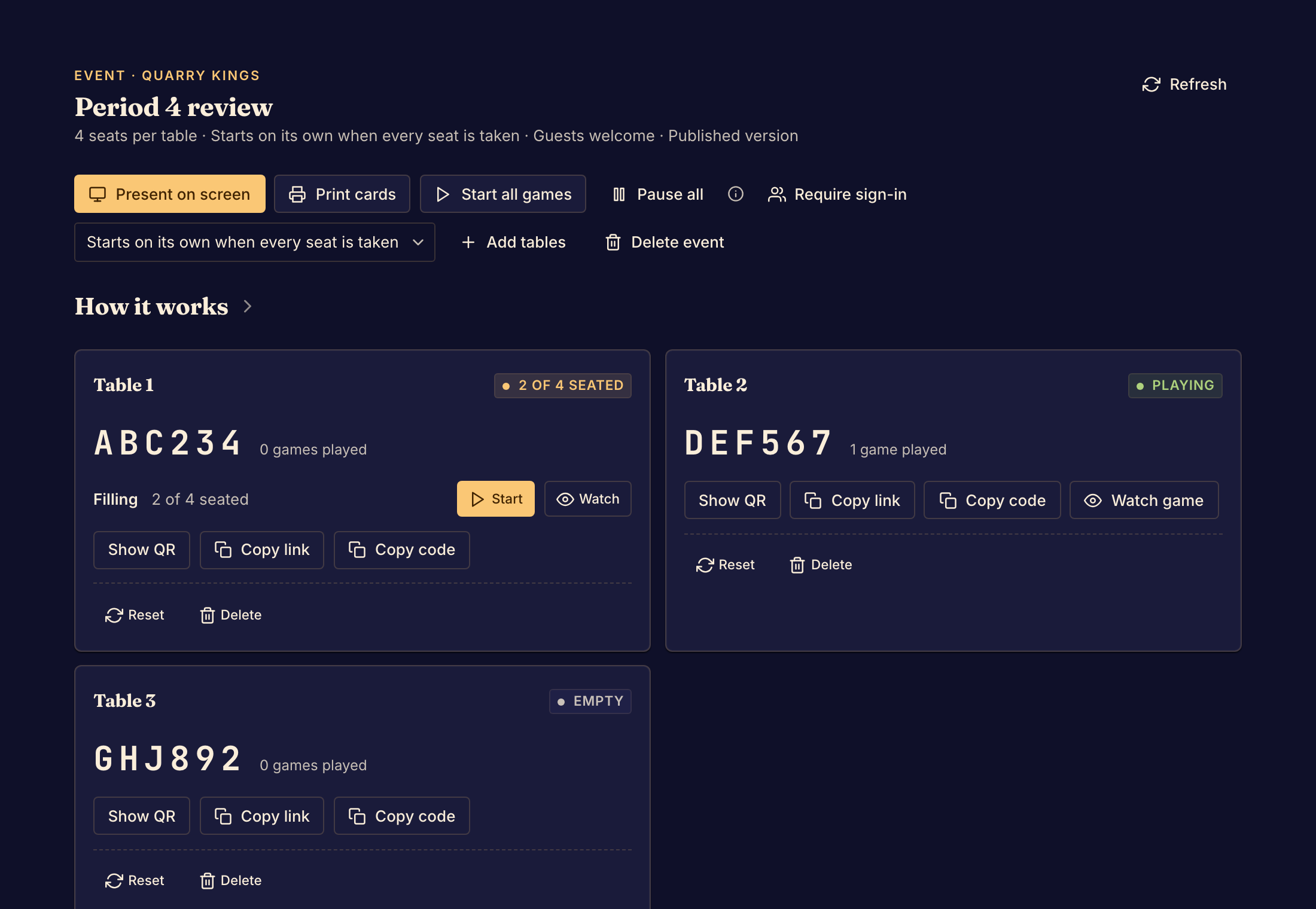
Keep the room moving
- Select Events in the top bar.
- Open your event.
- Read each table's state, such as 2 seats open, 1 group waiting or Playing.
Then act on the tables that need it:
- To start one group's game, select Start on its row. Start shows only when the group has a number of players your game can play with.
- To start every group that is ready, select Start all games. Groups that cannot start yet keep waiting.
- To look at a group or a game, select Watch or Watch game. You see only what is public on the board.
- To add room, select Add tables, choose How many tables, and confirm. Each new table gets the next number. Boardweaver never uses a table number twice.
Change how the event runs
- To choose how each game starts, use How a game starts: Starts on its own when every seat is taken, A seated player presses Start, or The organizer starts each table.
- To let people sit down without an account, select Allow guests. To stop that, select Require sign-in.
- To stop seating people, select Pause all, and confirm. Everyone waiting at a table is sent away, and games in progress finish. The codes keep working after you select Resume, so the same printed cards work next time.
Clear or delete a table
Read the confirmation before you confirm. These actions do not stop games already being played.
- Reset clears a table. Select Clear the waiting groups to confirm. Everyone waiting there goes back to the join page, and the next scan opens a new group under the same code.
- Delete removes a table. Select Delete this table to confirm. Its code and QR stop working for good, and everyone waiting there is sent away.
- Delete event removes the whole event. Select Delete this event to confirm. Every table's code and QR stop working for good.
When tables stop seating people
If you change your game so that it no longer plays with the event's number of seats, the event page says so. Those tables cannot seat anyone or start a game. Open a new event with a seat count your game uses.
Tell attendees which code to use after you change the tables. Next, share and display table codes. Players can read Join an event table.