Edit the game page
Players see your game's cover, logo and description before they play, and can open its landing page. Set all of these on the Marketing page in the Studio. Editors and admins can use this page. Players see your changes after you commit.
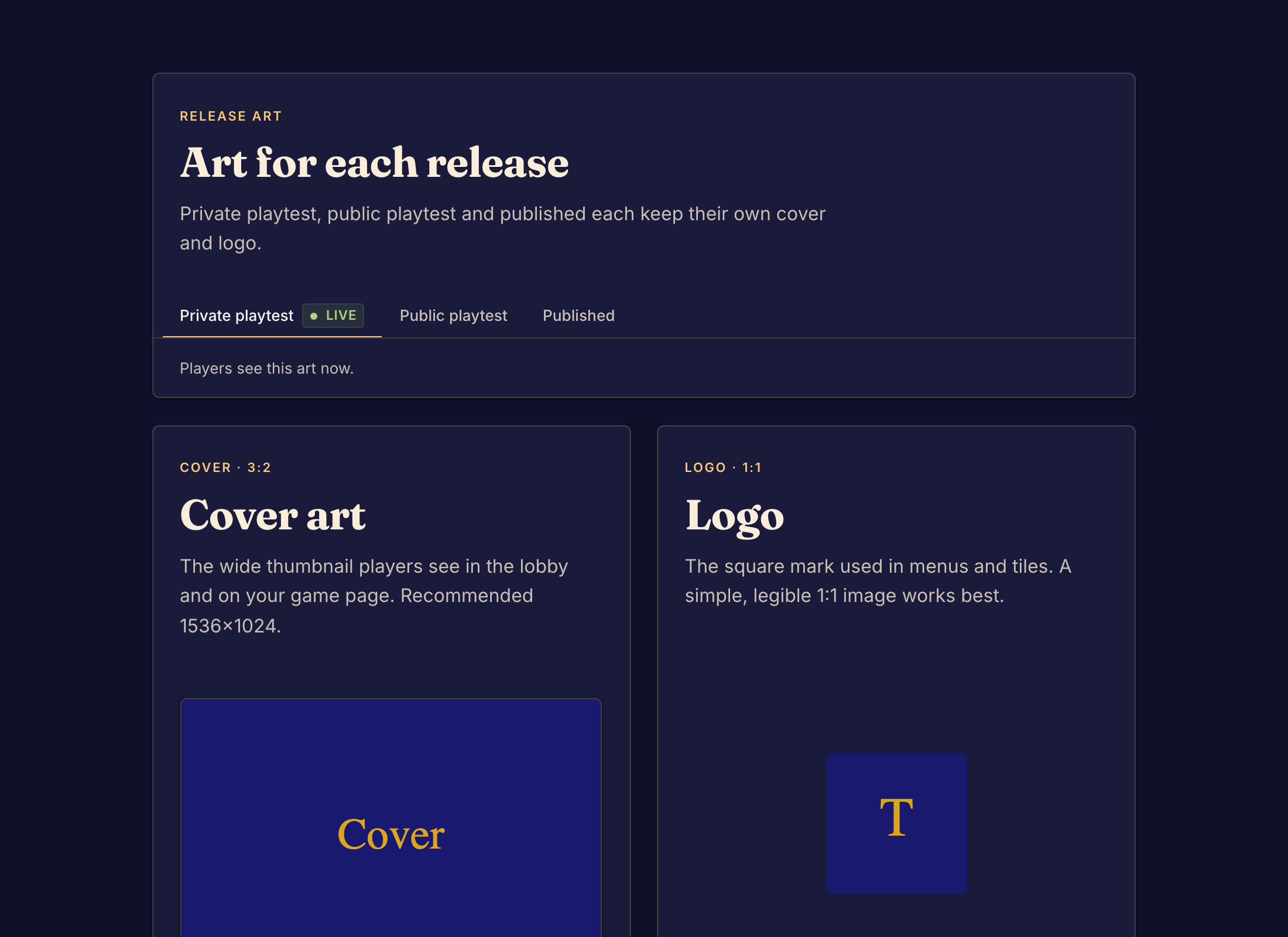
Set the cover, logo and description
- In the Studio sidebar, under Presentation, select Marketing.
- Under Cover art, select Upload and choose an image. Use a wide 3:2 image. The page recommends 1536×1024.
- Under Logo, select Upload and choose a square 1:1 image.
- Under Catalog card, fill in Description, How to play video, Estimated play time and Complexity. Boardweaver saves these as you type.
- Commit a game version.
To change an image, select Replace. To take it away, select Remove, then Remove again in the dialog. You can also select a slot and paste an image into it.
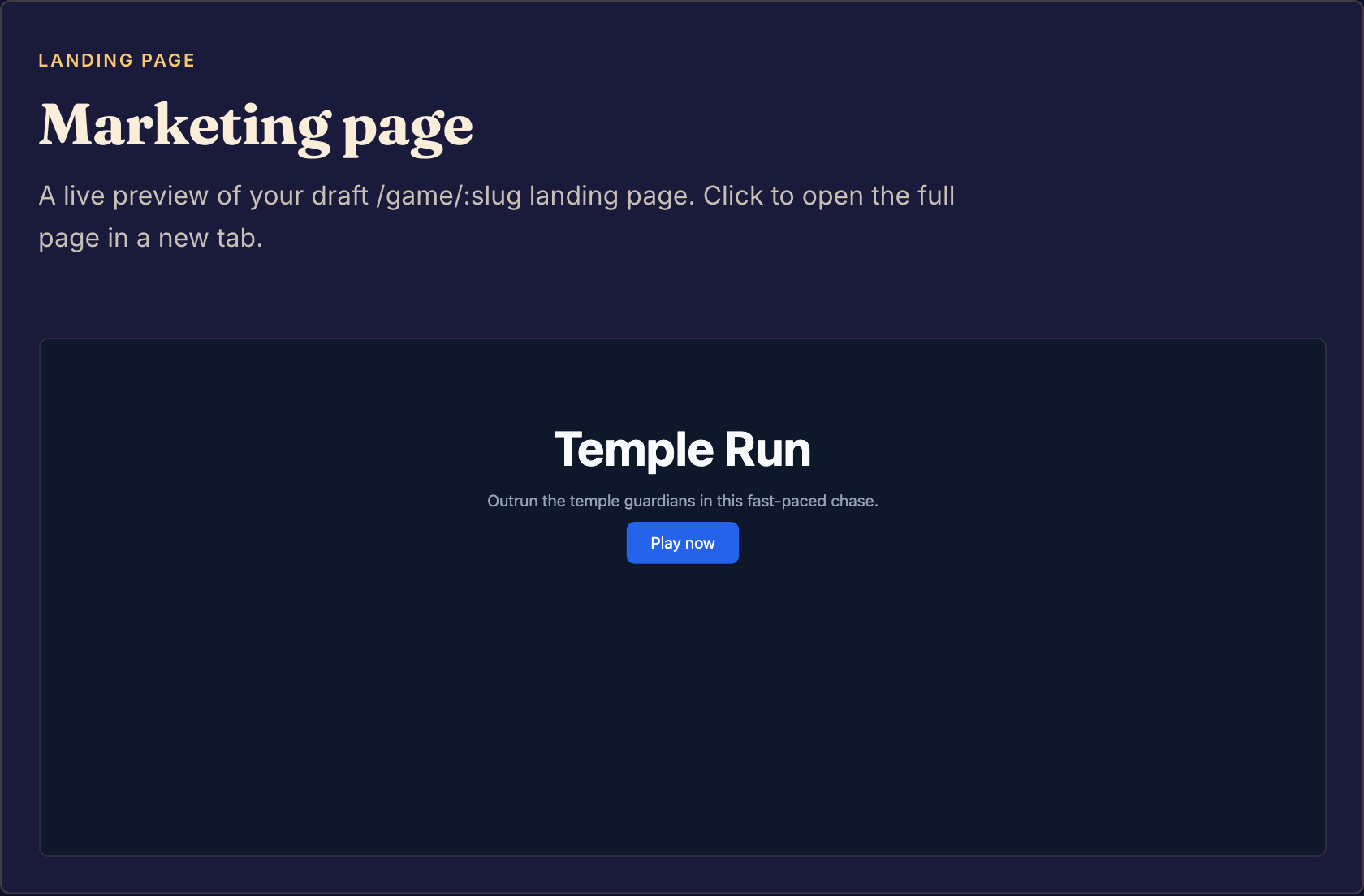
Write the landing page
The landing page comes from the file /src/marketing/index.bwss in your game. Ask your coding agent to write it, or edit it on the Code page. See Write a game page.
The Marketing page box at the bottom of the Marketing page shows a small preview of your latest draft. Select it to open the full page in a new tab. If the file does not exist yet, the box says "No marketing page yet".
What players see
Players see the cover and logo of the version they play. A new image reaches them only in a version you commit after you upload it. Catalog card changes reach everyone who can see the game once you commit them.
If a version has no cover or logo, players see a placeholder in its place.
If something goes wrong
Boardweaver shows "Failed to upload cover" or "Failed to upload logo". The image was not saved. Choose the image again. Use a JPG, PNG or HEIC image.
The page says "Only editors can manage marketing". You need the editor or admin role on the game. See Roles and permissions.
The cover and logo are not the images your game shows during play. Those are on the Art page. See Manage artwork. Next, edit the rules pages.